Management
Scope
At the "Management" section at "Employees" you can register employees for the Bioweb service.
Where to edit
At the left menu, click on "Employees" and then on "Management".
Employe > Management > Add employee
Add Employee
To register an employee, click on the "Add Employee" button and fill in the form.
- Name: insert name and surname of the employee.
- Employee ID: enter any ID number, whichever you want to identify your employee.
- Email: employee's business email address, required for him to log into the service.
- Password: enter a password for employee to log into the service.
- Password confirmation: confirm password.
- Photo: click on the "Choose file" button to upload a photograph of the employee (optional).
- NIF: insert employee's National Identification Number (NIN, TIN, UTR, DNI, etc.).
- Affiliation: insert employee's Social Security number (SSN) or National Insurance Number (NIN).
- Departments: click to assign the employee to a department. Departments are created at the Departmens section.
- Work centers: click to assign the employee to a work center. Work centers are created at the Work centers section.
Employe > Management > Add employee form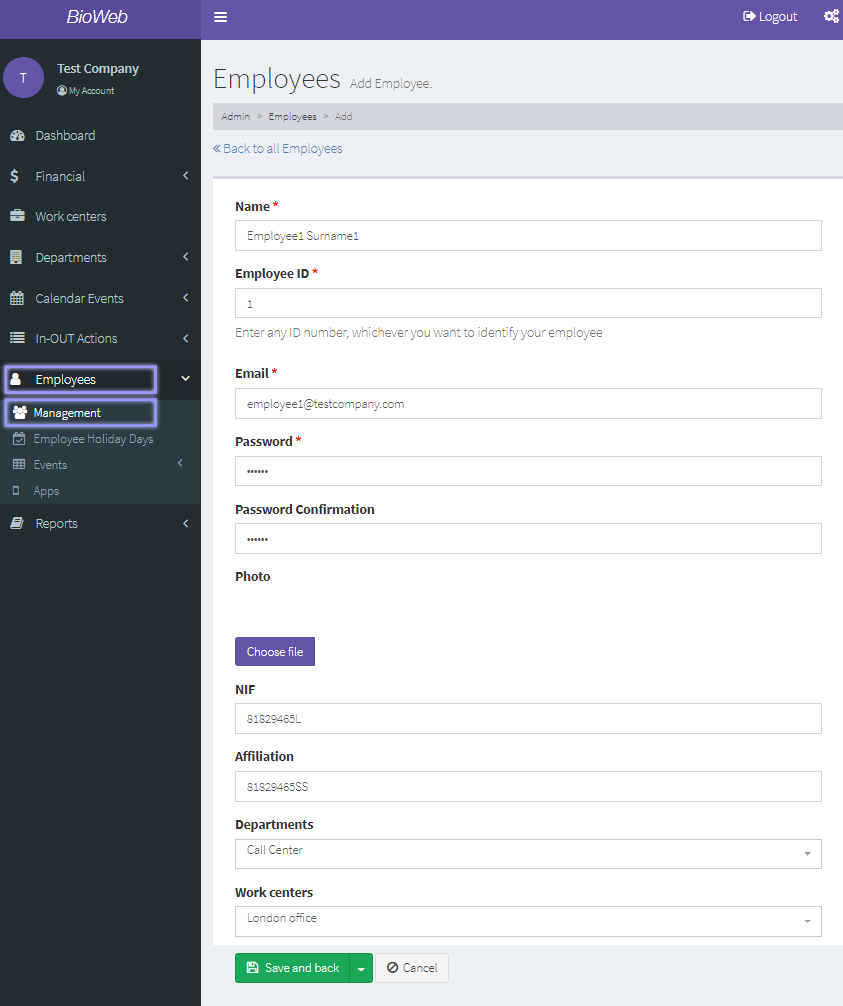
When you have finished, click on the "Save and back" button. Your new employee will appear at the employee list.
Manage employees
Once you have registered employees at Bioweb, they will appear at the employee list.
List of employees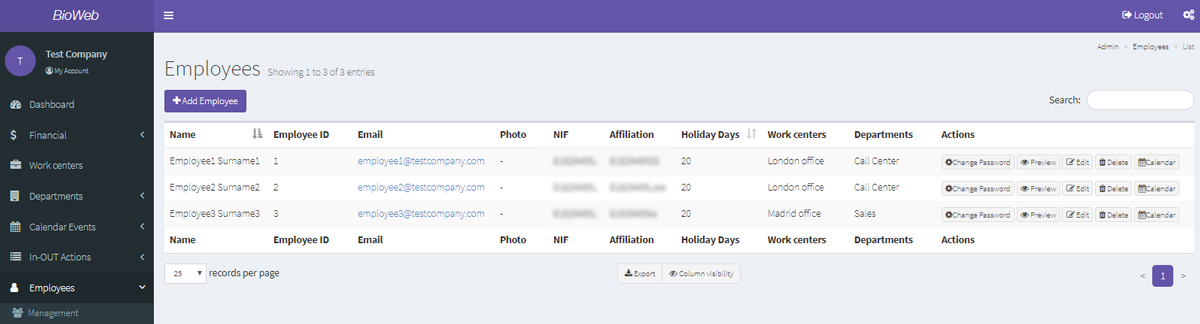
Manage your employees at the list:
- Change password: click here to change the employee's password to access Bioweb.
- Preview: click here to preview the employee's profile.
- Edit: click here to edit the tmeployee's profile.
- Delete: click here to delete an employee from the Bioweb servive.
- Calendar: click here to see the employee's calendar with public holidays that apply in his country and his leaves.