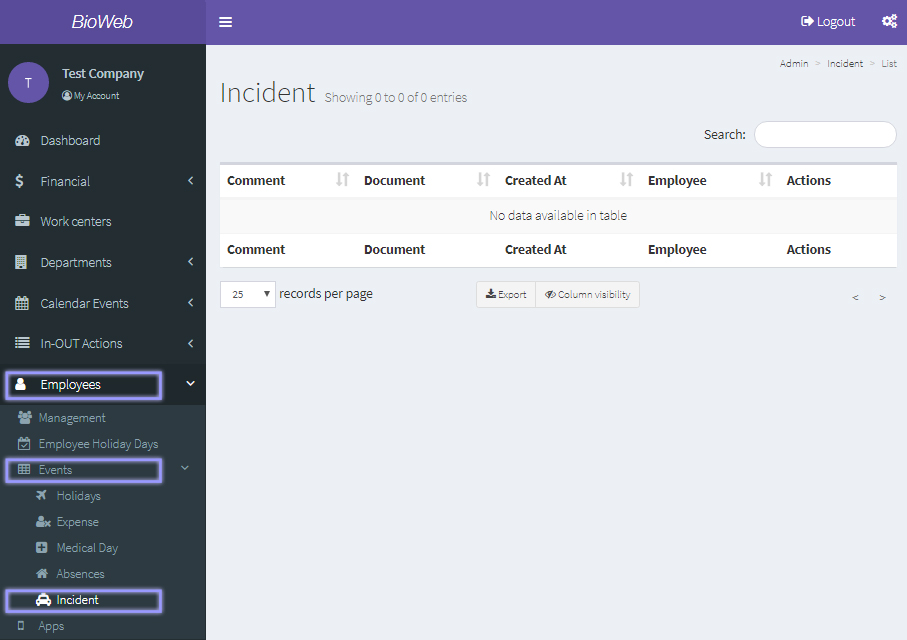
Events
Scope
At the "Events" section at "Employees" you can control holidays, expenses, medical days, absences and incidents on an employee basis.
Holidays
At the left menu, click on "Employees", on "Events" and then on "Holidays".
At this section you can assign a specific annual leave entitlement on an employee basis by clicking on the "Add holiday" button.
Employee > Events > Holidays 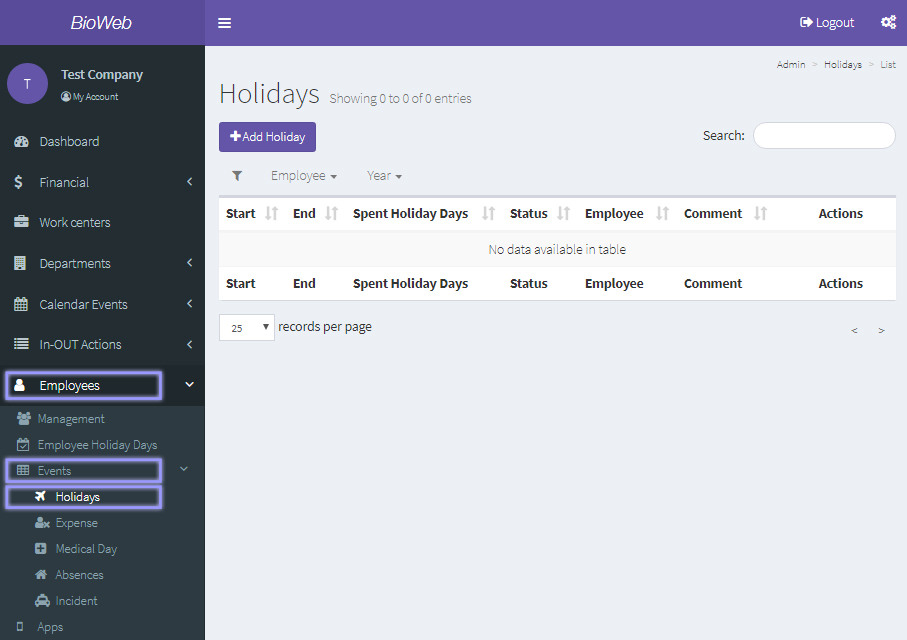
Expenses
At the left menu, click on "Employees", on "Events" and then on "Expenses".
At this section you can view a list with the expenses that employees have recorded at the service with their amount, date, invoice, and approval status. To approve or reject an expense, click on the "Approve" or "Deny" button under "Actions".
Employee > Events > Expense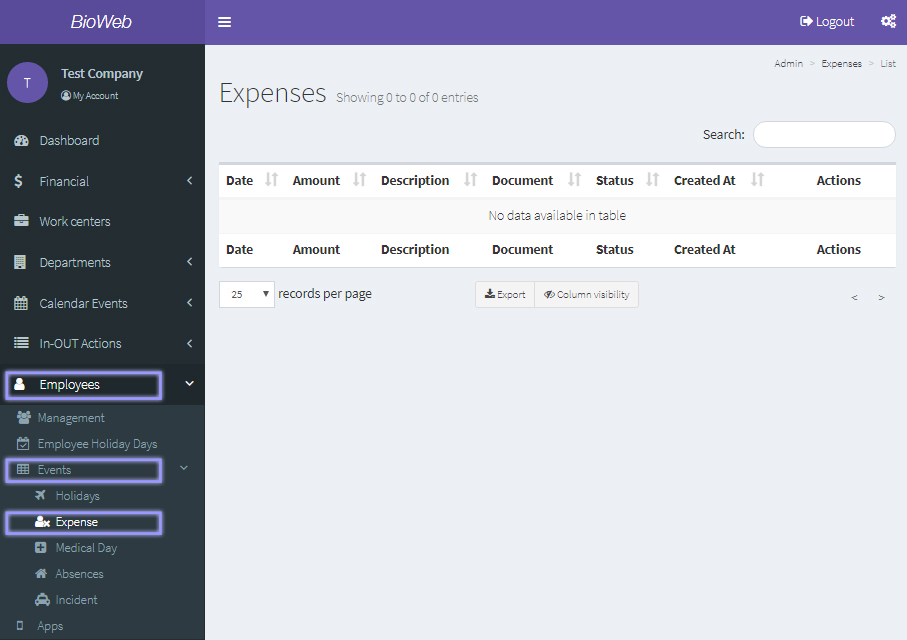
Medical Day
At the left menu, click on "Employees", on "Events" and then on "Medical Day".
At this section you can view a list with the sick leaves that employees have registered at the service and their details: leave type (leave, medical discharge), description of the reason for the sick leave, the document that proves the sick leave, and acknowledgement status. To acknowledge a sick leave, click on the "Read" button under "Actions".
Employee > Events > Medical Day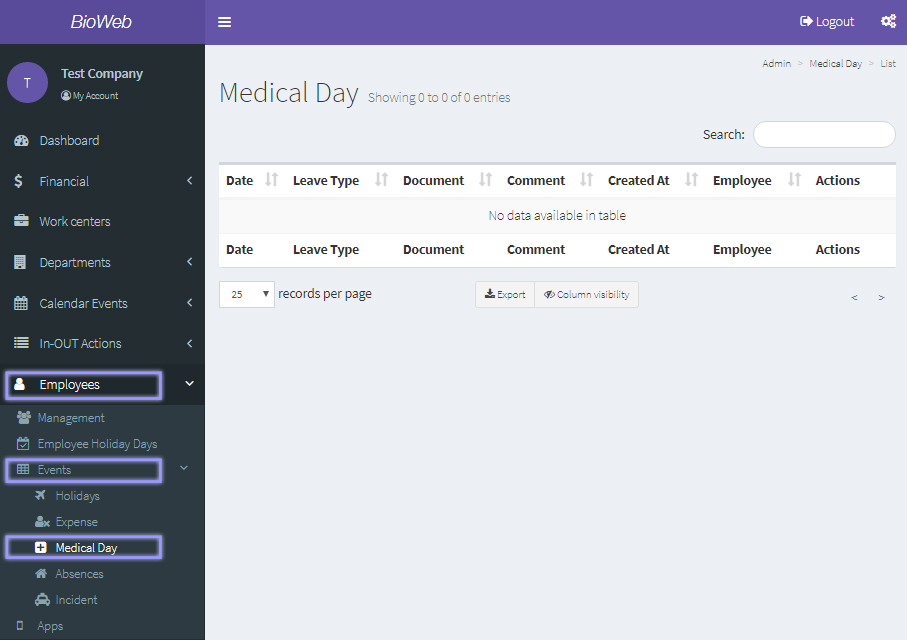
Absences
At the left menu, click on "Employees", on "Events" and then on "Absences".
At this section you can view a list with the absences from work that employees have registered at the service and their details: start and end date, comment with the reason of the absence, document that proves the reason for the absence if it exists, and acknowledgement status. To acknowledge an absence, click on the "Read" button under "Actions".
Employee > Events > Absences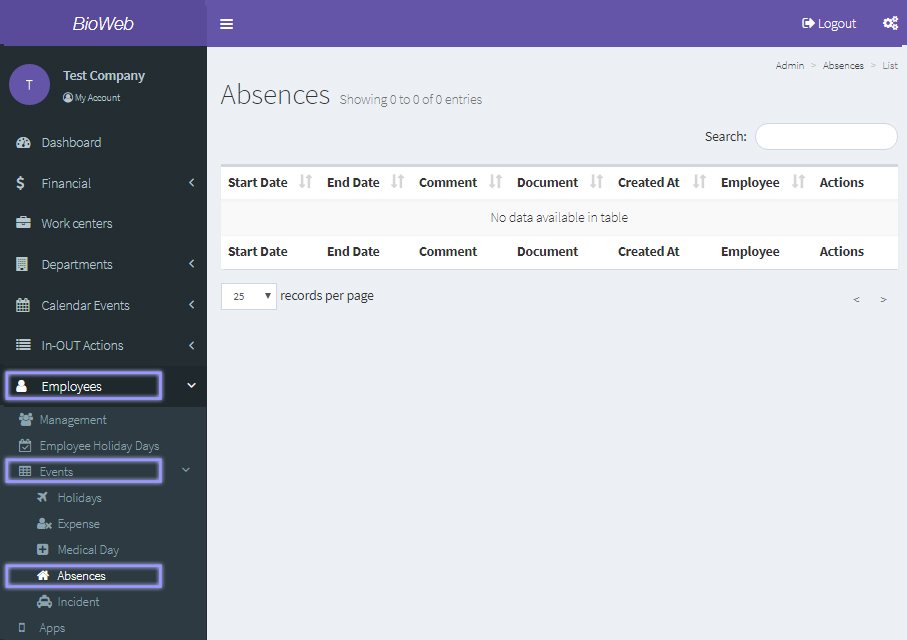
Incident
At the left menu, click on "Employees", on "Events" and then on "Incident".
At this section you can view a list with the unforeseen incidents from work that employees have registered at the service and their details: start and end date, comment with the type of incident, document that proves the reason for the incident if it exists, and acknowledgement status. To acknowledge an incident, click on the "Read" button under "Actions".
Employee > Events > Incident